Getting Started

How to Set Up Email Marketing (Author's Step-by-Step Guide)

Most authors stall on email because the setup feels like IT work. It isn't, but the order matters: get sender authentication right first, then capture, then send. Skip authentication and your launch email lands in spam. Skip capture and you have nobody to launch to.

This guide walks through the exact sequence to set up email marketing on AuthorMailingLists.com — from a clean account to a working signup form on your book site, plus your first scheduled newsletter. Plan on roughly 60–90 minutes, with a short pause while DNS records propagate.

1

What "set up" actually means

A working author email setup has five moving parts:

  • A verified sender domain (so your emails authenticate with DKIM + SPF)
  • At least one mailing list with double opt-in
  • A signup widget embedded somewhere readers can find it
  • A book catalog the AI can draw from for newsletter ideas
  • A repeatable sending rhythm — usually one weekly Always-On newsletter plus the occasional launch blast

If you skip the sender domain step, expect 20–40% of your mail to silently land in Promotions or Spam. Don't skip it.

2

Step-by-step setup

1. Configure your sender identity

Open Settings and fill in your author display name, reply-to address, and the domain you'll send from (usually yourname.com or yourpenname.com). AML will generate three DNS records — one SPF, two DKIM — for you to add at your registrar.
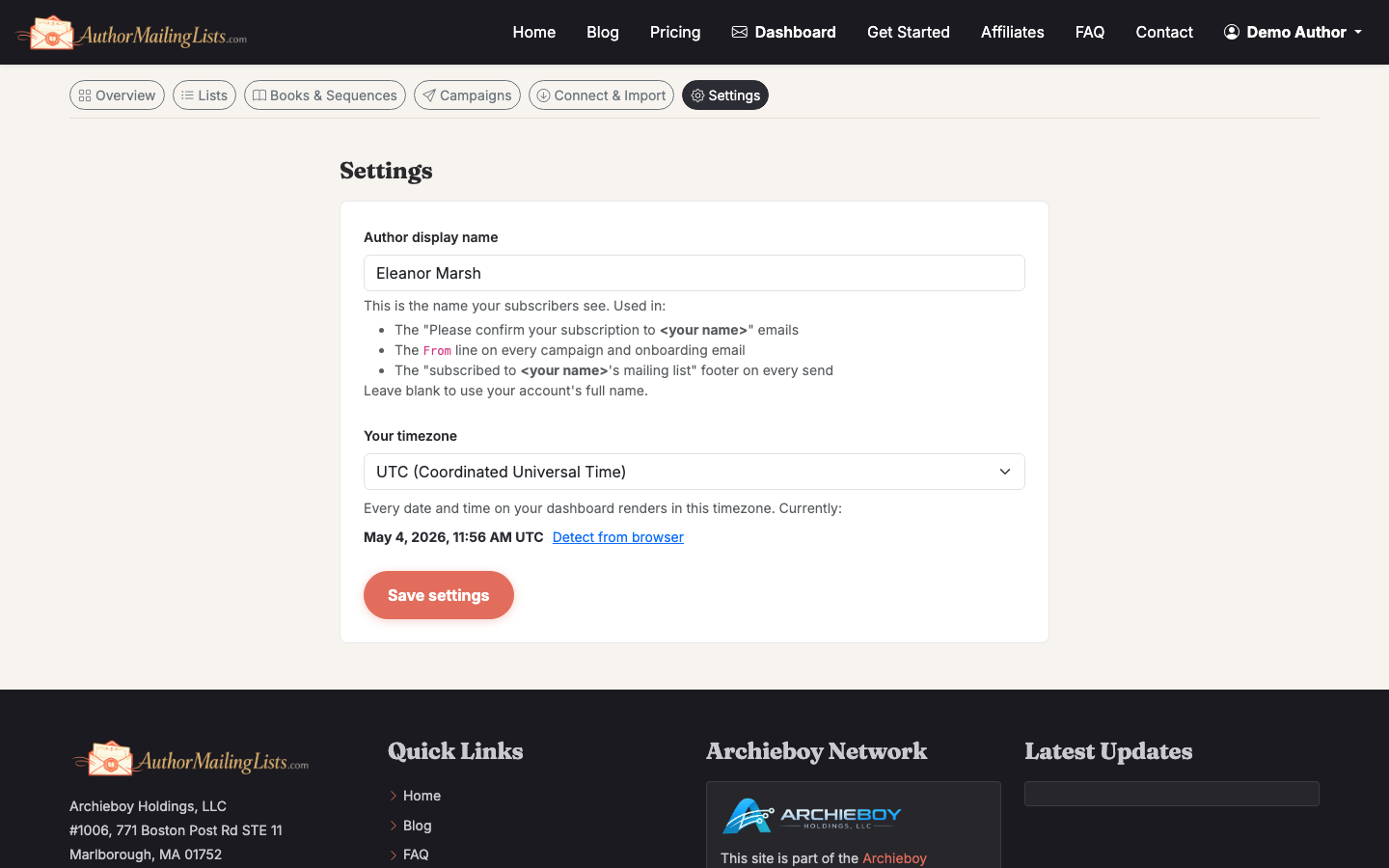
Sender identity and DNS records live on the Settings page

Add the records exactly as shown, then come back and click Verify. Most registrars propagate within 10 minutes; some take up to an hour. You can do the rest of this guide in parallel.

2. Create your first list

Go to Lists and create one. For most authors, a single "Readers" list is enough to start — segmentation comes later. Name it something readers will recognize on the confirmation email (e.g. "Jane Doe Readers" not "main_list_v2").
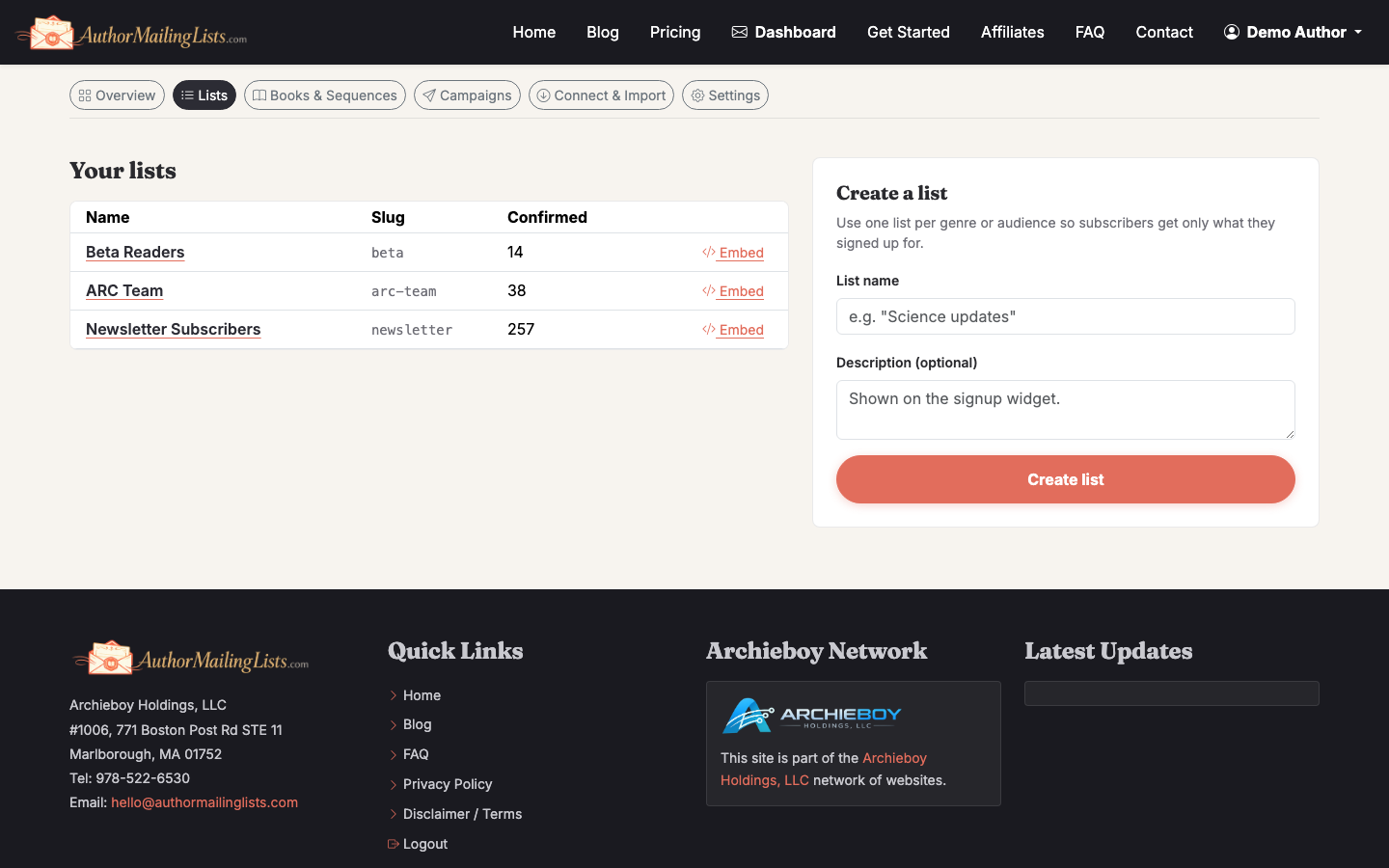
Create your first list from the Lists tab

Leave double opt-in turned on. Yes, you'll lose 10–15% of signups to people who don't confirm. You'll also lose almost zero deliverability over the next two years, which is a trade worth making.

3. Design your signup widget

Open the Widget Designer for that list. Match the button color to your book site, write copy that promises something specific ("Get the free prequel novella" beats "Subscribe to my newsletter" by roughly 3x in our data), and set the post-signup message.
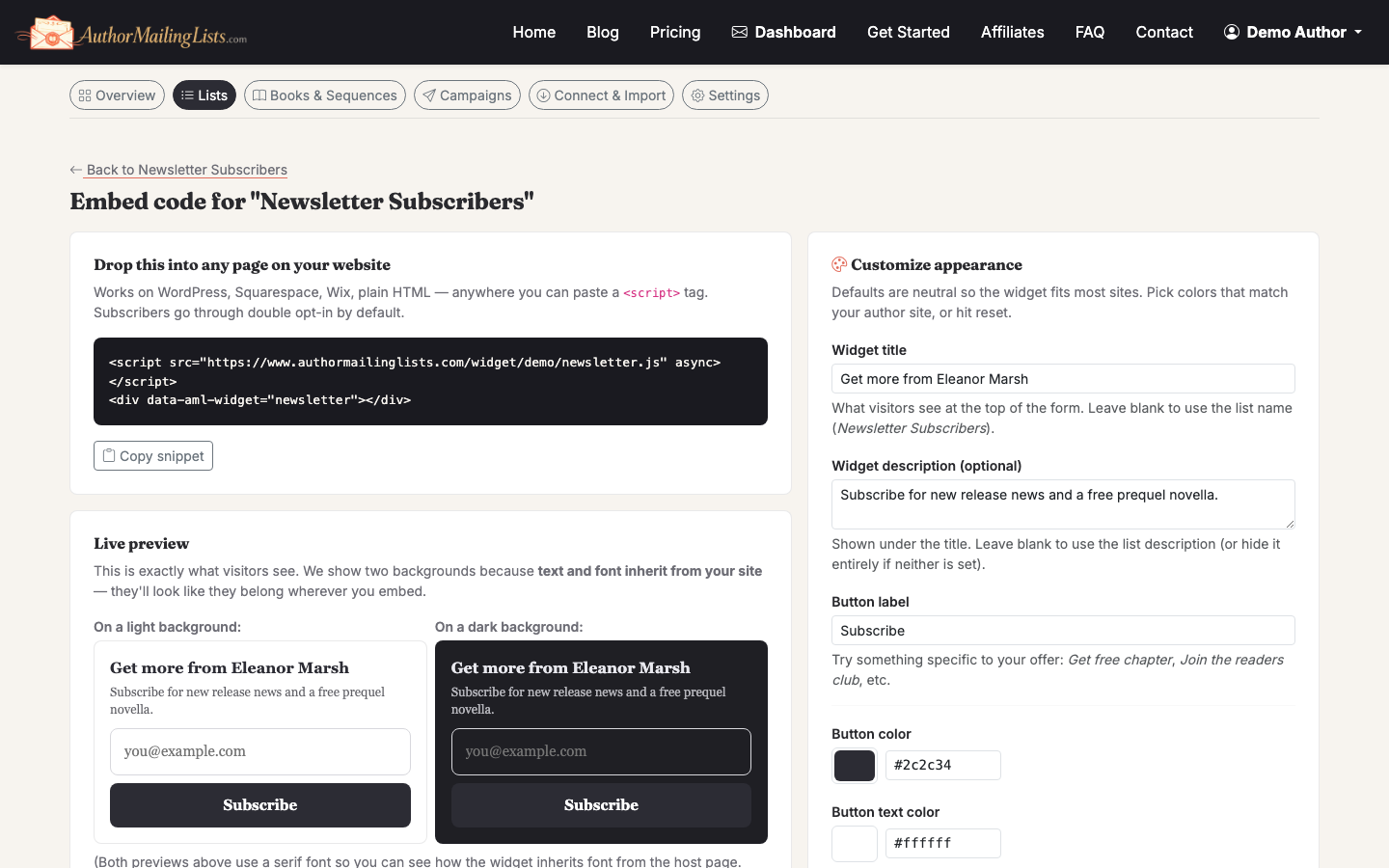
Match the widget to your book site and promise something specific

If you're offering a reader magnet — a free novella, character guide, or deleted chapter — name it on the button. Vague CTAs are the #1 reason author signup widgets underperform.

4. Embed the widget on your book site

Grab the embed snippet and paste it into your site. It works in WordPress (Custom HTML block), Squarespace (Code block), Wix, Ghost, and plain HTML.

Copy the embed snippet into your site's HTML

Place it in three spots minimum: the homepage above the fold, the bottom of every book page, and a dedicated /newsletter page you can link from your book's back matter. Need more places to put it? See How to Grow Your Email List.

5. Import any existing subscribers

If you've collected emails elsewhere — a previous ESP, a Google Form, BookFunnel — export them to CSV and import via the CSV flow. Required columns: email. Optional: first name, signup date, source.
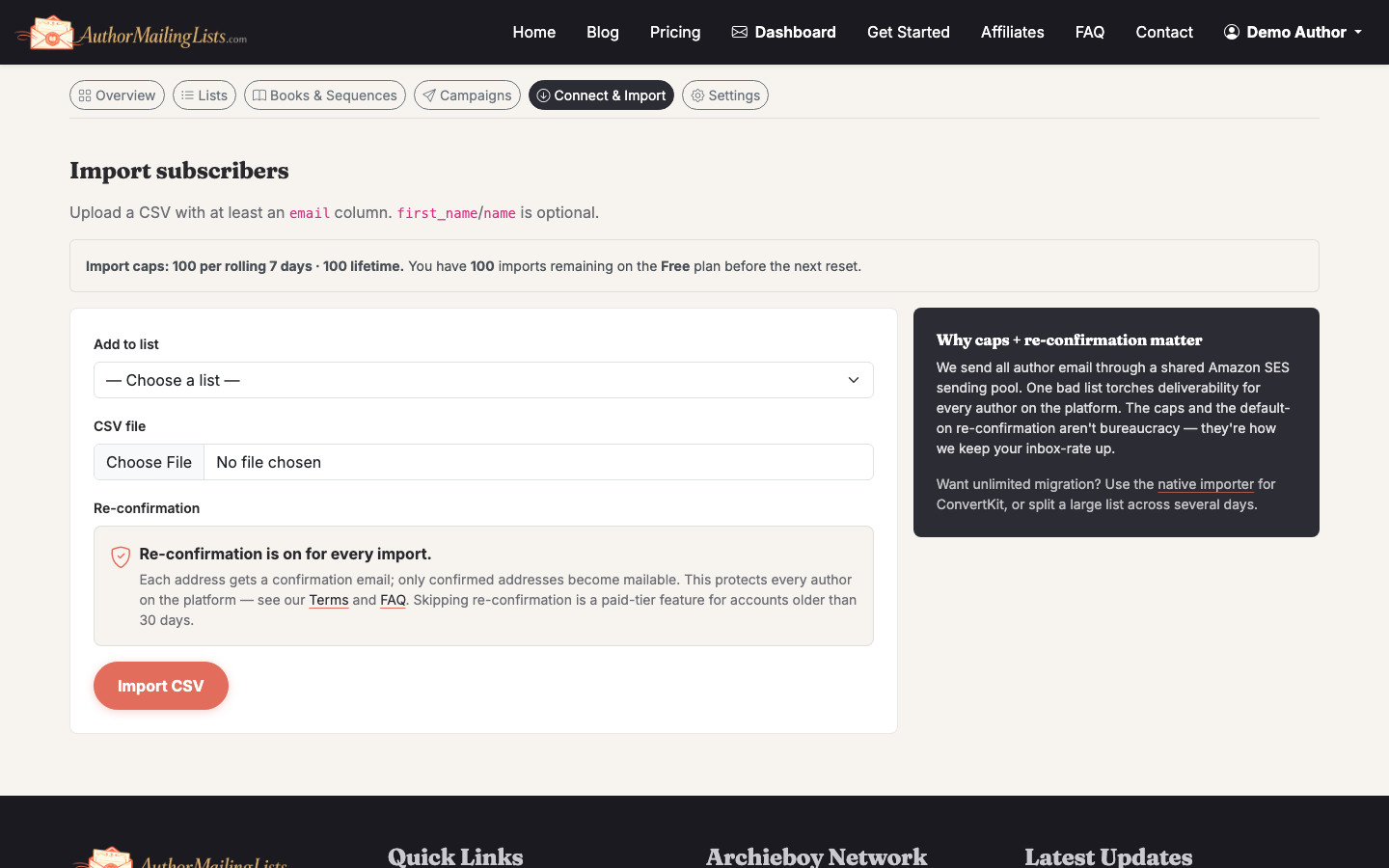
Migrate an existing list via CSV import

AML will send a re-permission email to anyone who hasn't engaged in 6+ months. This stings — you'll lose maybe 30–50% of a stale list — but it's the difference between a list that delivers and a list that gets you blocked.

6. Add your book catalog

Upload each published book with cover, blurb, themes, and 3–5 main characters. The AI uses this to draft your weekly newsletter, generate launch sequences, and write reader-magnet emails.
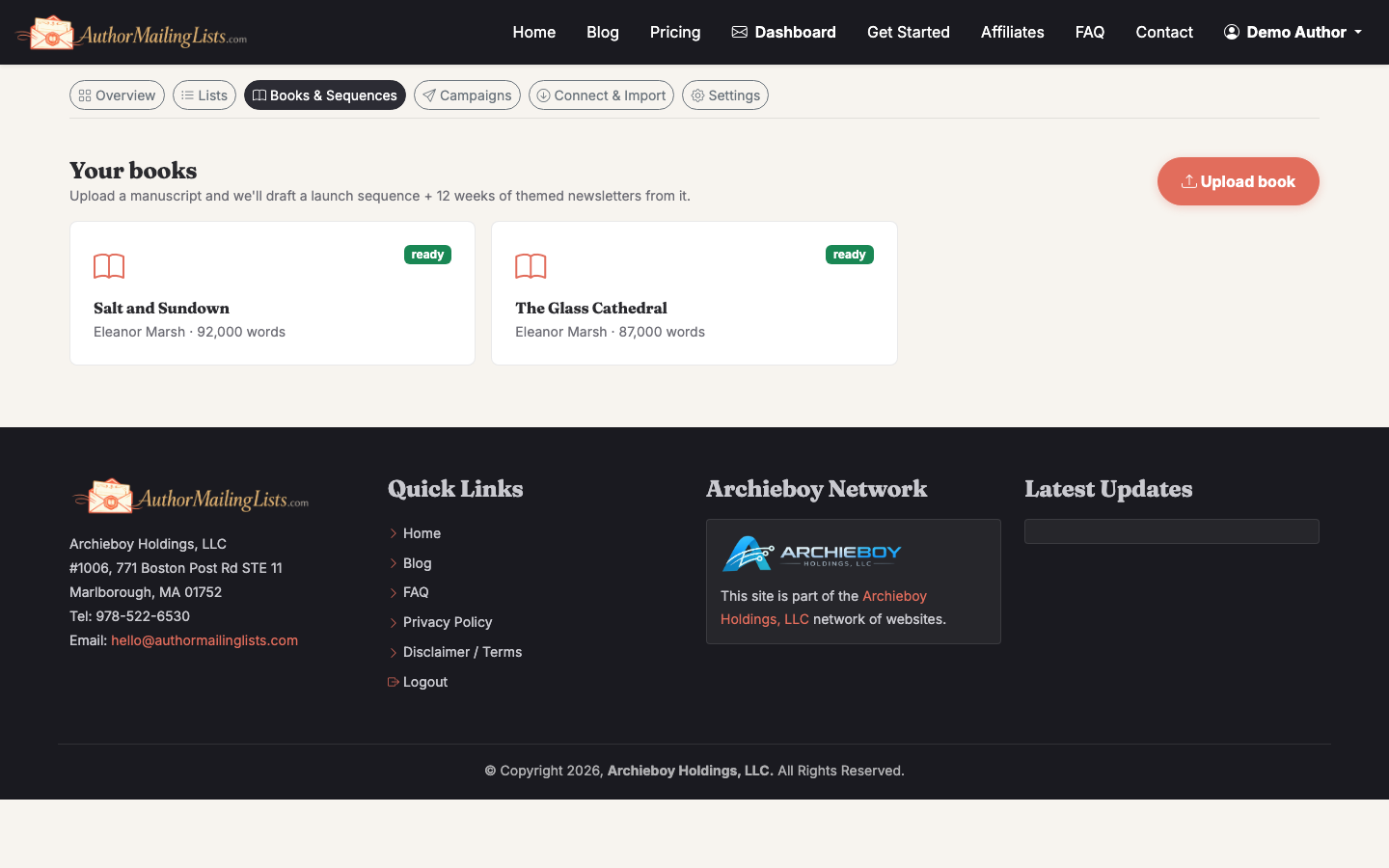
Your book catalog feeds the AI's newsletter drafts

This is the step authors most often half-finish. Don't. A book entry with rich themes and characters produces newsletter drafts you'll actually want to send. A skeleton entry produces filler.

7. Turn on the Always-On newsletter

Go to Campaigns → New → Evergreen and enable the Always-On weekly. Pick a send day (Tuesday or Thursday morning for fiction; Sunday evening for nonfiction tends to outperform), and a time in your local timezone.
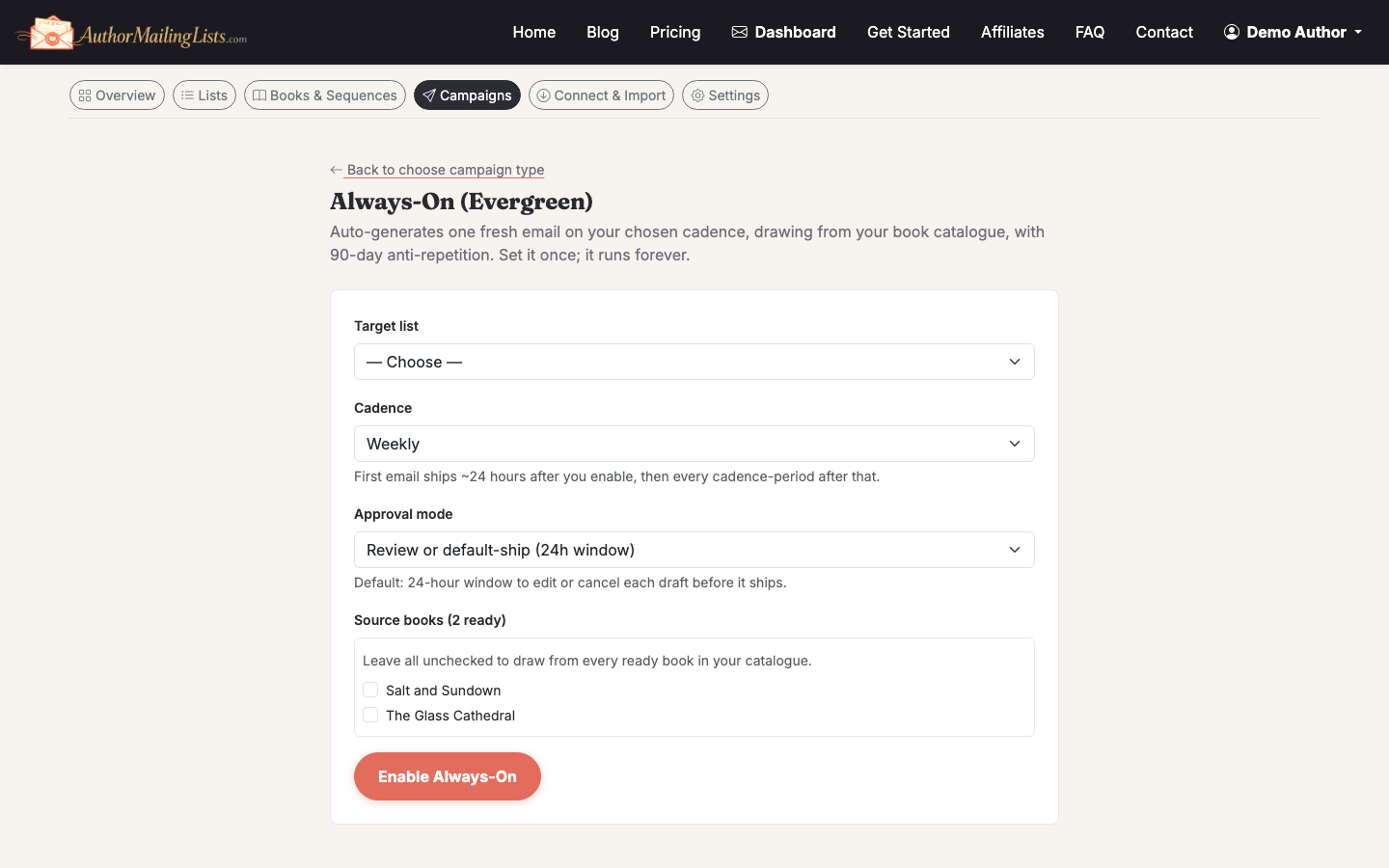
Turn on the Always-On weekly newsletter once and forget the blank page

Each week you'll get an AI-drafted email pulled from your books — a behind-the-scenes on a character, a theme tie-in, a deleted scene. Review, tweak, send. The whole point is that you never face a blank page on Monday morning.

8. Send a welcome blast

Write a one-off campaign to your existing list (if you imported one) introducing the new newsletter. Keep it short: who you are, what they'll get, when. If this is your first list, skip this step — your double opt-in confirmation already handles welcomes.
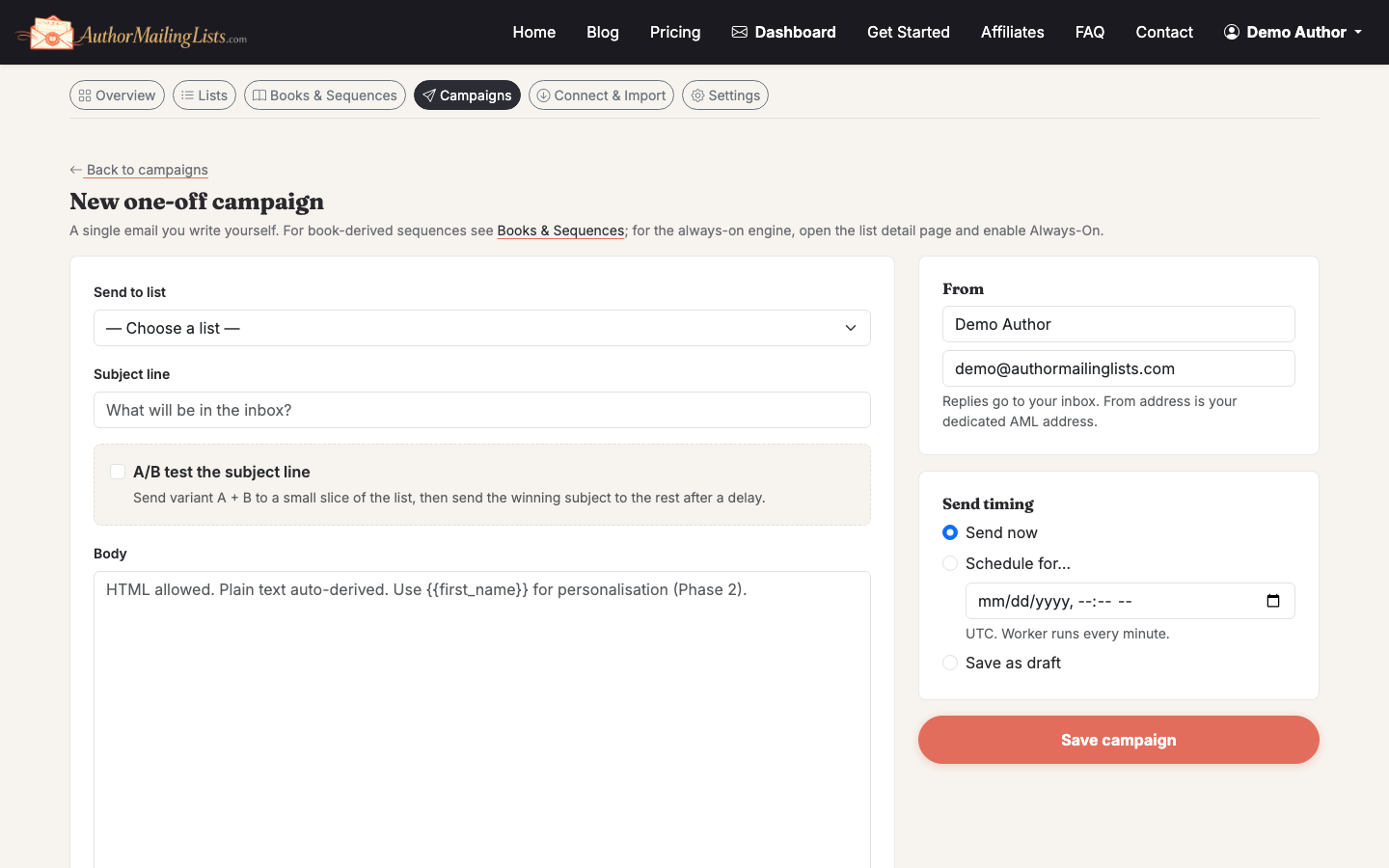
Write a one-off blast to introduce yourself to imported subscribers

For more on writing the campaign itself, see How to Create an Email Marketing Campaign Step by Step.

9. Watch the first sends

After your first campaign goes out, check the campaign detail page after 24 and 72 hours. Healthy author benchmarks: 35–55% open rate, 2–6% click rate, under 0.3% unsubscribe.
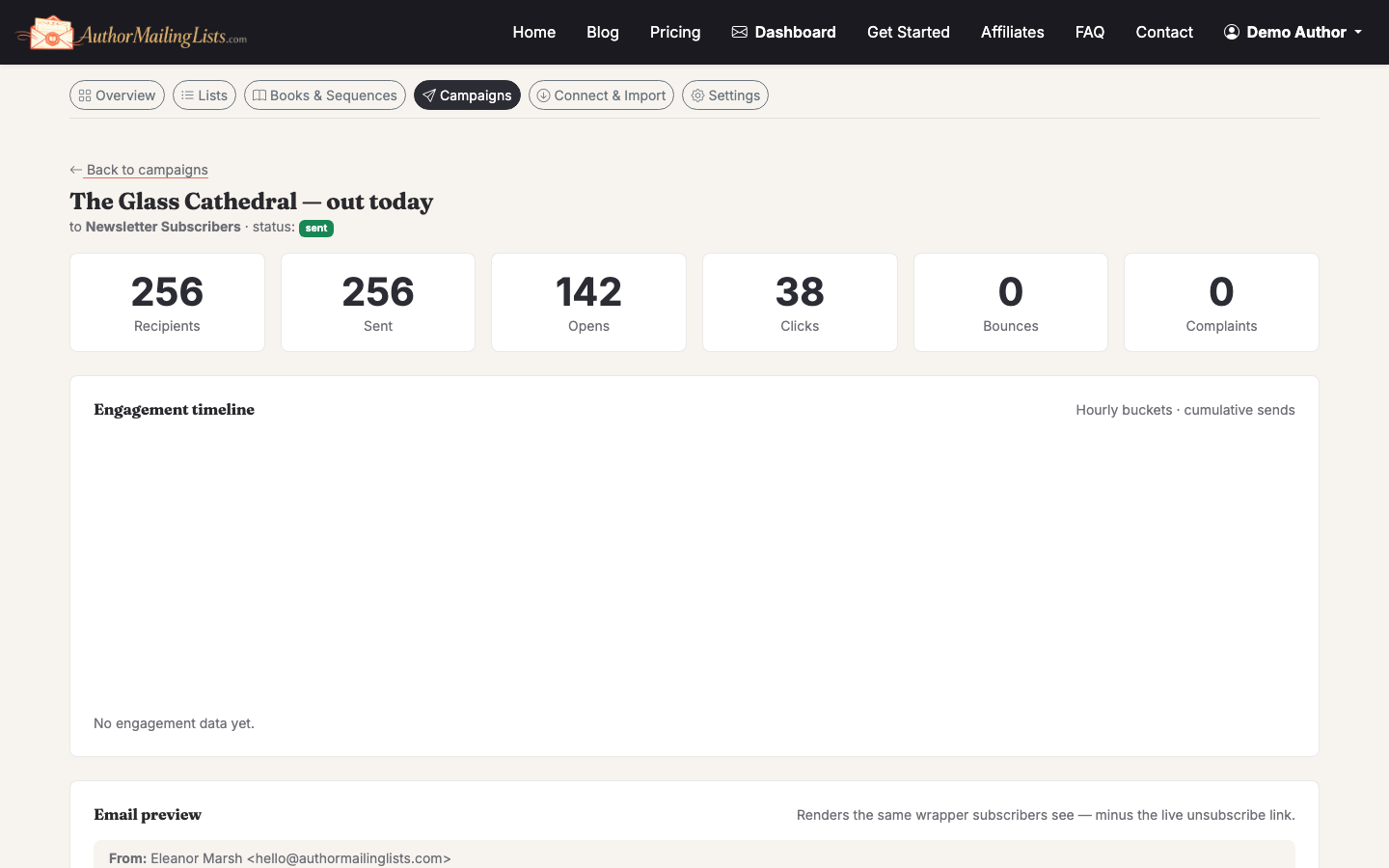
Check open and click rates 24–72 hours after each send

If opens are below 25%, your sender authentication probably didn't fully propagate or your subject line buried the lede. If unsubscribes are above 1%, your signup promise didn't match what you sent.

3

What to do in week two

Resist the urge to redesign anything. Send the next Always-On draft. Add the widget to one more place on your site. If you don't have a list yet at all, work through How to Make an Email List before optimizing anything else. Email marketing rewards consistency over cleverness — the author who sends a competent email every Tuesday for two years will out-earn the one who agonizes over a perfect launch sequence and sends three.
Frequently asked

How do I set up email marketing if I'm starting with zero subscribers?
Start with the infrastructure anyway: verify your sending domain, create one list, design the signup widget, and embed it on your book site and in the back matter of your books. Then turn on the Always-On weekly newsletter so you're sending consistently from day one — even to a tiny audience. Sending to 12 engaged readers builds the muscle (and the deliverability reputation) that pays off when your list hits 1,000. Most authors who quit email marketing quit during the zero-to-100 phase because they were waiting for permission to start.
How do I setup email marketing without a website?
You can, but you'll grow slower. AuthorMailingLists.com hosts a public signup page for every list at a shareable URL, so you can link readers there from social bios, podcast appearances, the back matter of your ebooks, and BookBub or Goodreads profiles. That's enough to build a respectable list. Long-term, a simple author site — even a one-page Carrd — outperforms a hosted signup page because you control the URL, the design, and the SEO. Plan to add one within your first 6 months.
How long does it take to set up email marketing properly?
Plan on 60–90 minutes of active work, plus a 10–60 minute wait for DNS records to propagate. The breakdown: 15 minutes on sender authentication, 10 minutes creating the list and widget, 15 minutes embedding the widget on your site, 20 minutes uploading 1–3 books to the catalog, and 10 minutes turning on your Always-On weekly. If you're importing an existing CSV list, add another 15–30 minutes for cleanup and the re-permission window.
Do I need DKIM and SPF to set up email marketing as an author?
Yes — and as of 2024, Gmail and Yahoo effectively require it for any sender mailing more than ~5,000 contacts, with stricter rules rolling out for smaller senders. Without DKIM and SPF, a meaningful chunk of your mail lands in Promotions or Spam, including launch announcements that took you weeks to write. AuthorMailingLists.com generates the exact records to add at your domain registrar and verifies them in one click. Skipping this step is the single most common reason author email setups underperform.
What should my first email be after I set up email marketing?
If you imported an existing list, send a short re-introduction: who you are, what the new newsletter is, what cadence to expect, and one sentence of value (a book recommendation, a behind-the-scenes detail, a free chapter link). Keep it under 200 words. If you're starting fresh with double opt-in, your confirmation email and welcome message do this work — your first "real" send should be your Always-On weekly newsletter, not a separate welcome blast. Pick consistency over perfection.
How do I set up email marketing for a pen name separate from my real name?
Create a separate sender identity in Settings using the pen name as the display name and a domain (or subdomain) tied to that pen name — e.g. janedoebooks.com. Pen names need their own DKIM and SPF records on their own domain; mixing pen names on one sending domain confuses readers and dilutes deliverability reputation. Within AML you can run multiple lists under one account, but use distinct sender identities for each pen name so the From line, reply-to, and footer all match the brand the reader subscribed to.